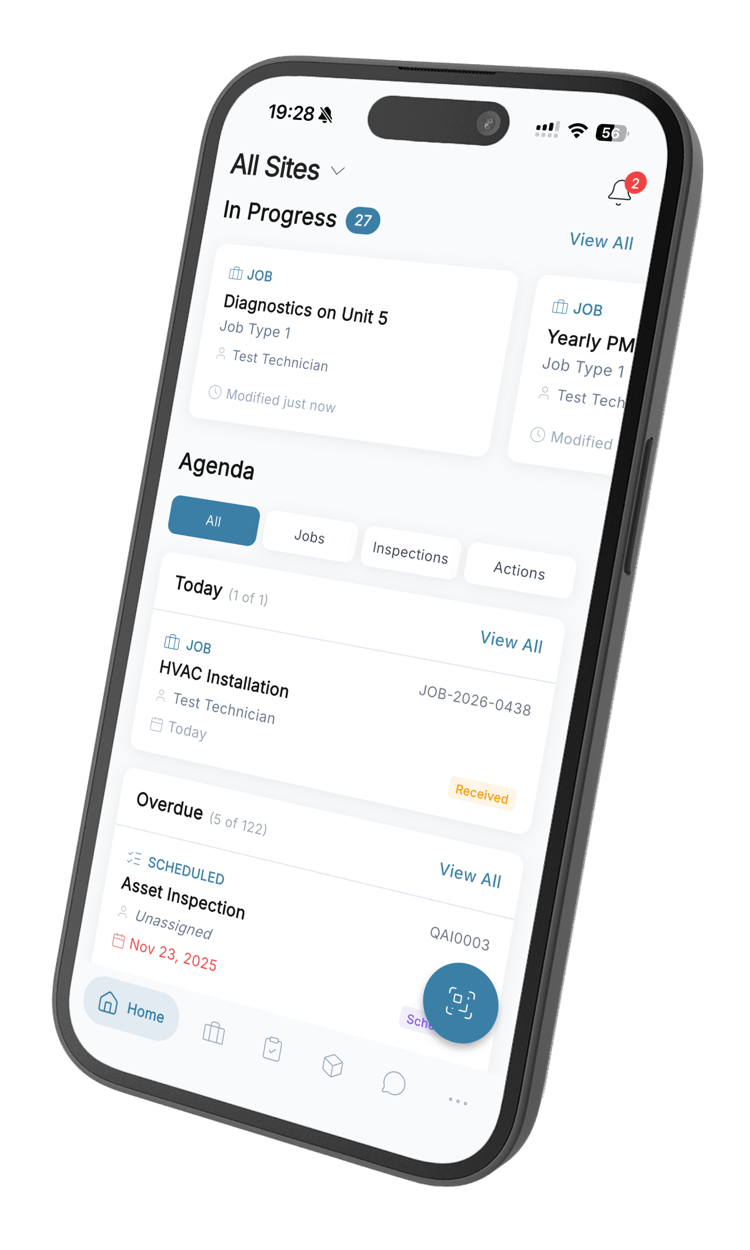
Every fault someone notices, reported and tracked
Right now problems reach you by phone call, WhatsApp and a word in the corridor, and some never reach you at all. With QAI, tenants, staff and customers report a fault from any device through your request link, with photos and no account, and follow it until it is fixed. Every request lands in one inbox and becomes a work order in one step.
Included on every plan, including Free.
Tell us what needs attention and we will keep you updated.
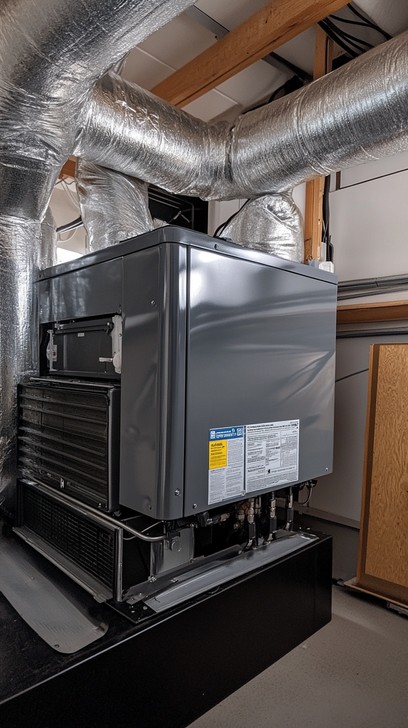 Add or drag pictures
From the first report to the finished job
Five points where requests usually get lost, and what changes when they all arrive through one door.
Anyone can report it, from any device
Share your request link wherever people notice problems: a notice in the lift, the tenant handbook, your website. They describe the fault, choose the location, add up to five photos and submit, with no app to install and no account to create. They get a tracking link on screen, and by email if they want updates.
Northgate Facilities
Request Received — Aircon on Level 3 making a loud noise
One inbox instead of five channels
Every request arrives in the same place, marked unread until someone opens it, with the photos, the location and the reporter’s description together. Pending, accepted and rejected requests sit in their own tabs, so nothing waits in someone’s personal messages or gets forgotten after a phone call.
Accept it, and it is already a work order
Accepting a request creates the work order in the same step: choose who it goes to, when it starts, how long it should take and when it is due. The site and its client come across with the reporter’s description and contact email, so the technician starts from what was reported rather than a retyped summary.
The reporter sees it move without phoning you
The tracking page shows where the request stands, from submitted to accepted, in progress and completed, and updates by itself as your team works the job. Reporters who opt in get an email at each step and can reply on the same page, so the calls asking whether anyone is on it stop.
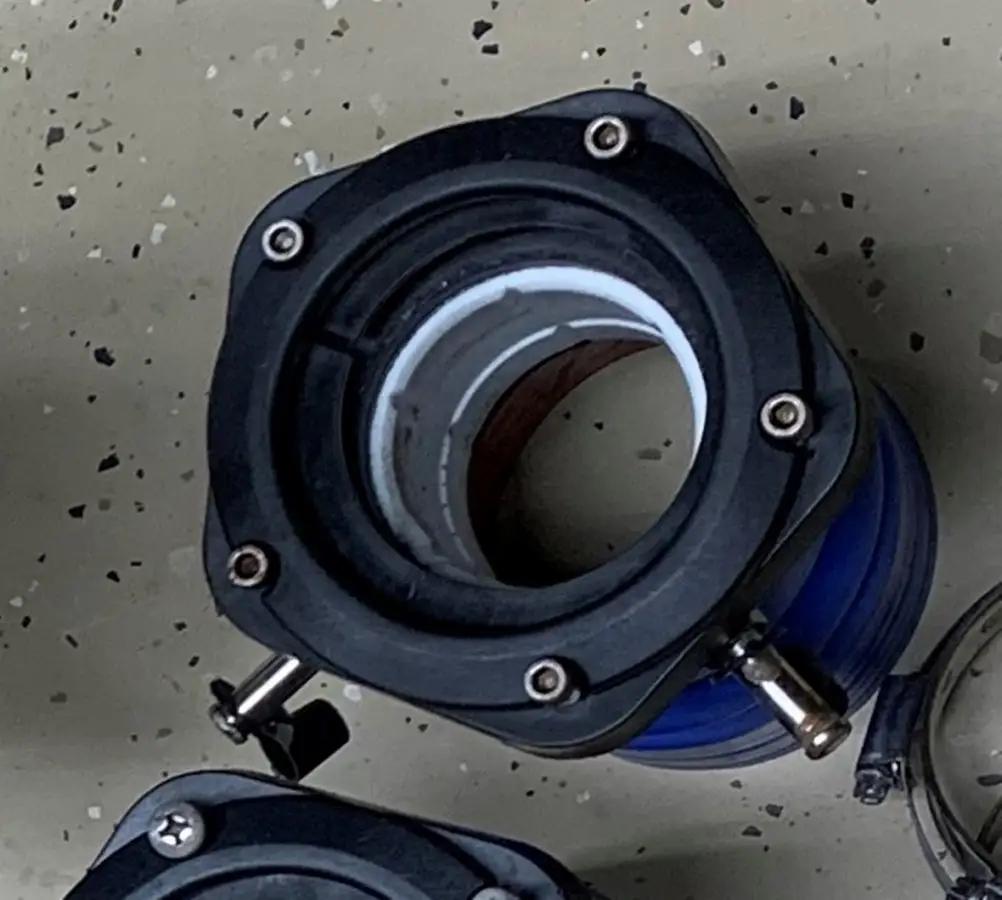
Know how fast you respond
Analytics show how many requests arrived, how many became work orders, how many were turned down and how many are still waiting, with the median time to first read and the median time to a work order. It is the number a client, a landlord or your own management will eventually ask for.
What comes with it
A public request link
One link for your organisation, shown in the portal settings with buttons to copy and open it. Switch the portal on or off at any time.
No account, no app
Requesters use the browser on any phone or computer. There is nothing to install and nothing to sign up for.
Photos with every request
Up to five photos per request, in JPG, PNG or WebP, so the team sees the fault before anyone goes out to it.
A live tracking page
A four-step progress bar, the photos and an activity timeline that refreshes by itself while the job moves.
Email updates
Requesters who leave an email are notified when the request is received and each time its status changes.
Accept or reject
Accept to create a work order with an assignee, a schedule and a due date, or reject with a reason the requester can read.
One conversation
Your team and the requester comment on the request itself. Comments are visible to both sides, so the conversation stays in one place.
On the mobile app
Read, accept, reject and reply to requests from the QAI mobile app, wherever your team is working.
Your page, your welcome
Your organisation’s logo, your own page title and welcome message, and invisible spam protection on every submission.
Work request questions
What teams ask before they open a request link to tenants, staff and customers.
Still have questions? Contact our sales team
No. The request page is public: anyone with the link can report a fault from a phone or computer browser, with nothing to install. They give the request a title, choose the location, describe the problem and can add up to five photos. Leaving an email is optional; requesters who do are sent a tracking link and updates as the request moves. Invisible reCAPTCHA screens out automated submissions without asking people to solve a puzzle.
Every plan, including Free. The request portal is not limited by plan and there is no cap on the number of requests, so even a small team can let tenants, staff or customers report faults at no cost. Accepted requests become ordinary QAI work orders, scheduled, assigned and closed out like any other job, and the request figures sit on the analytics dashboard with the rest of your work.
Each organisation has one public link, shown in the portal settings with buttons to copy and open it. Share it wherever people notice problems: in tenant or staff onboarding, in an email signature, on your website or on a printed notice. The page carries your logo, your page title and your welcome message, and the portal can be switched off at any time.
Accepting opens a short dialog where you choose who the work goes to, the start date and time, the expected duration and the due date. QAI then creates the work order with the request’s title, the reporter’s description and contact email, and the site and its client. The request moves to Accepted, the reporter sees the change on their tracking page, and from then on the request follows the work order through to completion.
Yes. Reject a request and add a reason if you want to. The reporter sees it on their tracking page as the reason the request was declined, and receives an email if they asked for updates. Rejected requests stay in their own tab, so there is a record of what was reported and why it was not taken on, which matters when the same fault is reported again later.
No. Comments on a request are visible to both your team and the person who reported it, and the inbox says so as you type. That keeps the whole conversation with the reporter on one page instead of split across calls and messages. Anything meant only for your team belongs on the work order, which the reporter does not see.
Yes. The QAI mobile app has a Requests section where your team can read new requests, accept or reject them, reply to the reporter and change the portal settings. The requests themselves are submitted through the public page, which works in any phone browser, so the people reporting faults never need the QAI app.
The form and the tracking page appear in the reporter’s browser language when it is one of the eleven languages the page supports: English, German, French, Spanish, Italian, Dutch, Norwegian, Portuguese, Swedish, Turkish and Chinese. Your page title and welcome message are shown exactly as you write them, and the status emails are currently sent in English.
Give everyone a way to report a fault
A public request link, one inbox and a work order in one step, with live tracking for whoever reported it. Included on every plan, including Free.